
Trading on MT4 has become one of the most popular ways to access global forex markets. The MetaTrader 4 platform, commonly known as MT4, is one of the most popular online trading platforms for trading forex, CFDs, and commodities. It was created by MetaQuotes Software in 2005, and has quickly become the industry standard for traders and brokers alike because of its user-friendly interface, powerful charting tools, and automated trading capabilities.
No matter what level of trader you are, MT4 offers a robust, flexible, and secure environment for all kinds of strategies, whether you’re a beginner or an advanced trader. By the end of this guide, you’ll fully understand how trading on MT4 works and how to master it.
Table of Contents
Why MT4 Is Still Relevant in 2025
In spite of the existence of MetaTrader 5 (MT5), MT4 remains the most popular tool among traders worldwide. Here are some reasons why trading on MT4?
- Simplicity: MT4 is lightweight, stable, and easy to navigate.
- Broker Compatibility: Most forex brokers still support MT4 accounts.
- Massive Community: There are thousands of free indicators, scripts, and EAs.
- Automation Support: Traders can automate their strategies using the MQL4 language. Learn how our expert traders use automation in live markets.
- Accessibility: Available on Windows, macOS, Android, and iOS.
These reasons make trading on MT4 an essential skill for anyone entering the forex or CFD markets. Discover how Propxem copy trading helps beginners follow profitable traders automatically.
Who Uses MT4?
MT4 caters to a wide range of users:
- Retail traders: Individuals trading their own capital.
- Professional traders: Managing client accounts via MAM or PAMM systems.
- Algorithmic traders: Running automated bots.
- Signal providers: Sharing trade ideas or strategies. See if copy trading is good for beginners and how it compares to manual MT4 trading.
If you’re looking for flexibility, custom indicators, and reliable execution, MT4 is hard to beat. So what exactly does trading on MT4 involve?
Benefits of Trading on MT4
Here are some of the key features that make MT4 stand out:
- 1. User-Friendly Interface: There is no learning curve when it comes to MT4’s interface, even for beginners. With just a few clicks, you can access all the essential tools – from price charts to order management. For beginners, trading on MT4 is both intuitive and powerful.
- 2. Advanced Charting Tools: In addition to 30+ technical indicators, the MT4 platform supports multiple timeframes and custom scripts. In addition to drawing trendlines and Fibonacci retracements, traders are able to view multiple charts at any time.
- 3. Automation with Expert Advisors (EAs): There is no doubt that MT4’s greatest advantage is its ability to automate trading. The application allows you to create or download EAs that execute trades according to pre-set rules, eliminating the need for emotion in trading. Read our guide on price action trading without indicators for a cleaner strategy.
- 4. Security and Stability: The data transmission between client terminals and servers is secured with 128-bit encryption in MT4. Because of its reliability and low latency, it is trusted by brokers worldwide.
- 5. Customizability: If you want to adapt the platform to your strategy, you can customize the interface, load custom templates, or install third-party indicators.
What Can You Trade on MT4?
While MT4 is famous for forex trading, many brokers also offer:
- Commodities (Gold, Silver, Oil)
- Indices (S&P 500, NASDAQ, FTSE 100)
- Cryptocurrencies (BTC/USD, ETH/USD)
- Stocks and CFDs
However, the available instruments depend on your broker — always check what’s listed in your trading account.
Is MT4 Free?
Yes, MT4 is completely free to use. If you want to download it, you can do so directly from MetaQuotes’ website or from the website of your broker. Retail traders benefit from free access to full market information because brokers pay for licensing.
Why Beginners Should Start with MT4
When you’re a new trader, MT4 is a great learning environment because it offers the following features:
- Demo accounts (practice with virtual money)
- Educational resources and tutorials
- Low system requirements
- Support for mobile trading
The reliability of MT4 makes it a popular starting point for traders, and most never leave it despite mastering the basics.
Step-by-Step Setup for Trading on MT4
Before you begin trading on MT4, you’ll need to download and install the platform. When you’re ready to start trading on MT4, you need to set up the platform correctly. No matter where you are, installing the software is easy – but making sure it’s configured correctly makes a big difference to the way you trade.
You will learn how to download, install, and customize MetaTrader 4 (MT4) the way a professional trader does.
Step 1: Choose a Reliable MT4 Broker
To download MT4, you will need an account with a broker who supports it. Trading live on MT4 is only possible through a broker’s MT4 server, even though the MT4 platform itself is universal.
When choosing your broker, consider these:
- Regulation: Ensure they’re regulated by authorities such as FCA, ASIC, or CySEC.
- Spreads & Commissions: Lower spreads mean lower trading costs.
- Execution speed: Fast execution minimizes slippage.
- Assets offered: Check if they provide forex, indices, commodities, or crypto.
- MT4 support: Not all brokers offer MT4 anymore, so confirm before signing up. Explore our list of FCA-regulated UK forex brokers verified for safety.
Pro Tip: For fast execution and reliable access to MT4, traders use brokers like IC Markets, Pepperstone, FXTM, or Exness.
Step 2: Download MT4
The MT4 download link can typically be found on the broker’s website once you’ve selected a broker.
You can also get it directly from:
MetaQuotes official website
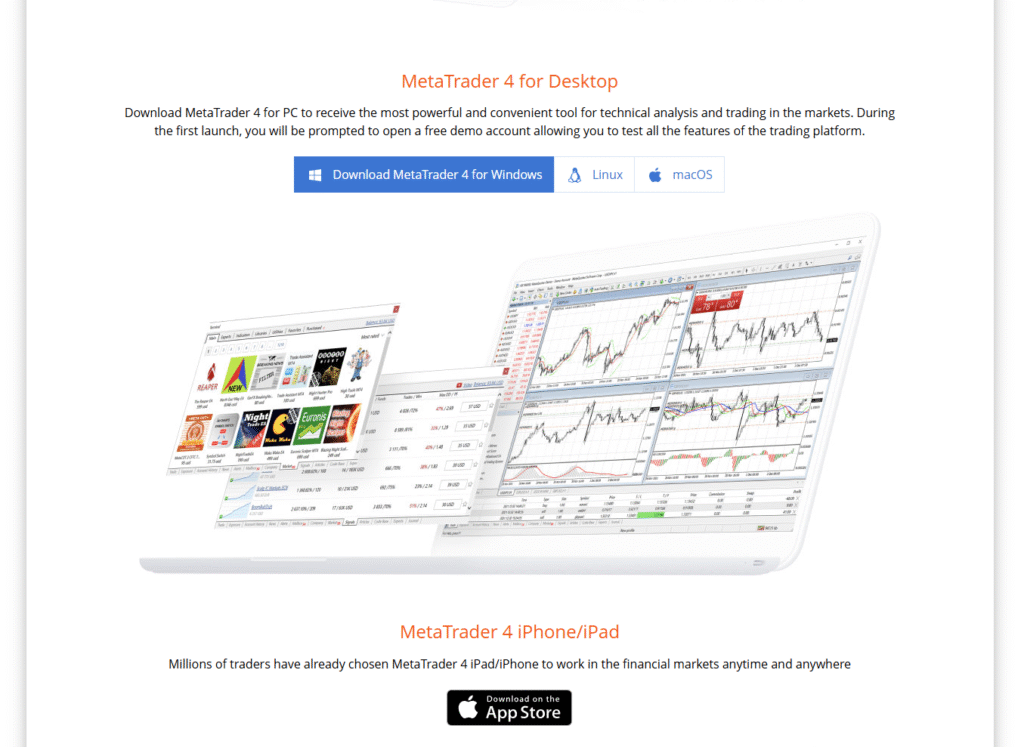
There are versions for:
- Windows
- Mac
- Android
- iOS
You can access the full range of tools, charts, and Expert Advisors on the desktop version for the best performance.
Step 3: Install and Launch the Platform
For Windows:
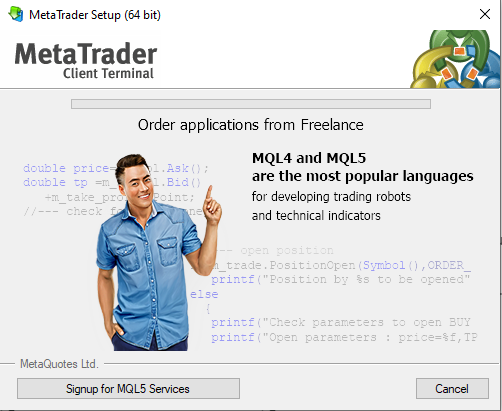
- Run the .exe installation file.
- You will have to follow the prompts on screen and agree to the terms.
- Once installed, open the MetaTrader 4 shortcut from your desktop.
For macOS:
- Download the .dmg installer or use your broker’s Mac-compatible version.
- Drag the MT4 icon into your Applications folder.
- Launch MT4 — you may need to allow permissions under System Preferences > Security.
In MT4, a default demo server is automatically connected when the application is launched. You’ll change this in the next step.
Step 4: Log in to Your Trading Account
To start trading on MT4, open your account credentials and connect to your broker. In MT4, a pop-up will ask you to log in when it starts. Your broker will need to provide you with three details:
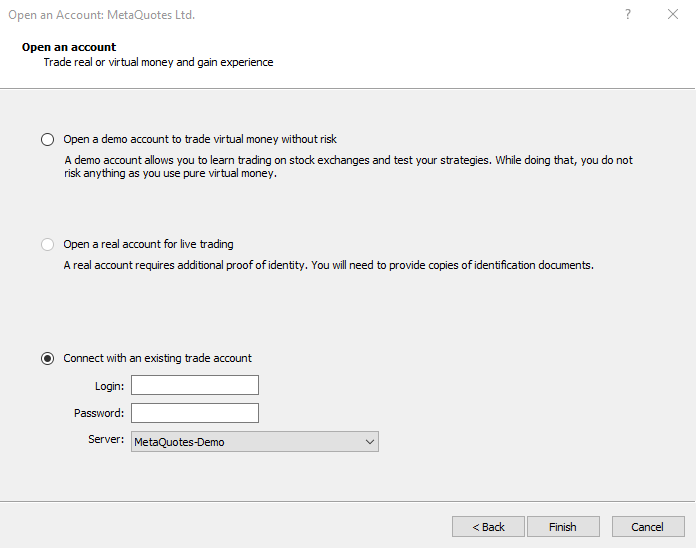
- Login (Account Number)
- Password
- Server Name
Once you have selected your broker’s server, click “Login.”
You’ll see live data flowing through your charts as soon as you are connected.
It is risk-free and allows you to practice trading without risking your own money if you are new to trading.
Step 5: Configure the MT4 Platform
There is no doubt that MT4’s default setup is functional, but it is quite basic. Customize it to meet your workflow needs.
Key customization tips:
- Chart Type: Switch between candlesticks, bar charts, or line charts (right-click on the chart → “Chart Type”).
- Colors: Go to Properties (F8) → choose a dark or light theme based on your preference.
- Timeframes: Use the toolbar to select from 1-minute (M1) to monthly (MN) timeframes.
- Market Watch: Press Ctrl+M to open or hide the Market Watch panel.
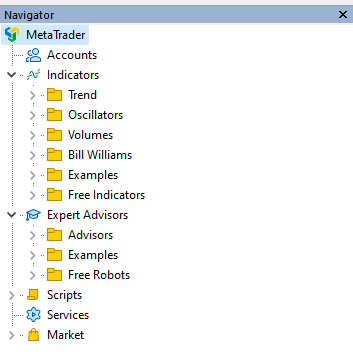
- Navigator: Press Ctrl+N to access indicators, scripts, and Expert Advisors.
- Toolbox: Press Ctrl+T to view trades, history, alerts, and journal logs.
Once customized, right-click the chart and choose “Template → Save Template.” This lets you reuse your preferred layout later.
Step 6: Load Indicators and Expert Advisors (EAs)
The power of MT4 lies in its ability to use custom indicators and automated strategies.
To add Indicators:
- Go to Insert → Indicators.
- Choose from trend, oscillator, or volume indicators.
- Adjust parameters as needed.
It is also possible to import custom indicators by copying .ex4 files or .mq4 files into
MQL4 → Indicators folder under your MT4 installation directory.
To add Expert Advisors:
- Go to Navigator → Expert Advisors.
- Drag your EA onto the chart.
- Enable “AutoTrading” on the toolbar.
As of now, your EA is capable of automatically opening and closing trades based on its algorithm.
Step 7: Set Up Alerts and Notifications
Take advantage of every trading opportunity. In MT4, you can set up alerts to notify you when certain conditions or price movements occur.
Go to Terminal (Ctrl+T) → Alerts tab → Right-click → Create.
You can trigger alerts by price level, time, or custom indicator conditions.
If you wish, you can receive push notifications directly from the MT4 app on your mobile device.
Step 8: Connect MT4 Mobile
To trade on the go:
- To trade on the go: Download MetaTrader 4 from Google Play or the Apple App Store.
- Log in using your broker credentials.
- Scan the QR code from your desktop version (File → Connect to Mobile Device).
With the MT4 mobile app, you can open and close trades, look at charts, and monitor the market – ideal for active traders.
Step 9: Backup and Save Settings
Once your MT4 is configured,
- Export your templates and profiles regularly.
- Backup the MQL4 folder, which stores your indicators, EAs, and scripts.
- Save your login credentials securely.
In the event that your phone or computer changes, or MT4 is reinstalled, you’ll be able to easily restore your settings.
Understanding the MT4 Interface and Tools
Now that you’ve installed MetaTrader 4, it’s time to familiarize yourself with its user interface. The more you understand each window, chart, and tool, the smoother and more effective your trading will be – whether you’re trading manually or using automated trading software.
In this section, we’re going to break down the MT4 interface and show you how to use each part when placing trades, analyzing markets, and managing risk.
The MT4 Interface Overview
Understanding the dashboard is key to trading on MT4 effectively. As soon as you open MT4, you’re presented with a multitude of panels, menus, and charts. You don’t have to feel overwhelmed – every section has a purpose.
Here’s what’s typically visible by default:
- Menu Bar – Contains all main options like File, View, Insert, Charts, Tools, Window, and Help.
- Toolbar – Shortcut icons for quick actions (new order, chart type, timeframes, indicators, etc.).
- Market Watch – Displays available instruments and their live bid/ask prices.
- Navigator – Access to accounts, indicators, EAs, and scripts.
- Chart Window – The heart of MT4, where price movements and analysis happen.
- Terminal / Toolbox – Shows open trades, balance, history, alerts, and more.
Let’s go over each in detail.
1. The Menu Bar
All aspects of your trading platform can be controlled via the menu bar located at the top of MT4’s window.
- File: Open new charts, manage profiles, log into your account, or exit MT4.
- View: Toggle toolbars, Market Watch, Data Window, or Navigator.
- Insert: Add indicators, lines, Fibonacci tools, and text to your charts.
- Charts: Control chart types, templates, timeframes, and properties.
- Tools: Access global settings, trading options, and the MetaEditor (for coding EAs).
- Window: Manage multiple open charts.
- Help: Access the official MT4 manual or platform updates.
Pro tip: Learn shortcuts to speed up your workflow, such as Ctrl+N for Navigator and Ctrl+M for Market Watch.
2. The Toolbar
MT4 provides three main toolbars:
- Standard Toolbar – New orders, profiles, chart management.
- Charts Toolbar – Change chart type (bar, candlestick, or line), zoom, and add indicators.
- Timeframes Toolbar – Switch between M1, M5, H1, D1, and other intervals.
The toolbars can be shown/hidden by right-clicking anywhere near the top and selecting them or deselecting them. With this toolbar system, you can easily customize your workspace for day trading, swing trading, or scalping.
3. The Market Watch Window
There are a number of trading instruments available in this panel (currency pairs, indices, commodities, etc.).
Key functions:
- Bid and Ask Prices: See real-time quotes.
- Right-click → Chart Window: Opens a chart for that pair.
- Right-click → Specification: Shows contract details like spread, leverage, and swap rates.
You can also right-click → “Show All” to view every available symbol offered by your broker.
Pro tip: To switch instruments instantly, drag any symbol from the Market Watch directly onto a chart.
4. The Navigator Window
Accounts, indicators, scripts, and Expert Advisors can all be managed through the Navigator, which is your main control panel.
It contains:
- Accounts: Manage multiple demo and live accounts.
- Indicators: Access built-in and custom technical indicators.
- Expert Advisors: View automated trading bots installed in your MT4.
- Scripts: Small tools for quick functions like closing all trades or setting alerts.
You can drag and drop any item from the Navigator directly onto your chart to activate it.
5. The Chart Window
The chart area is where most of your trading on MT4 happens. You’ll be spending the majority of your time in the chart window. Visually displaying price action and providing tools for analysis with indicators, drawings, and templates are all part of the solution.
Chart Types:
- Bar Chart (Alt+1): Simple bars showing open, close, high, and low.
- Candlestick Chart (Alt+2): The most popular type; visually shows bullish and bearish candles.
- Line Chart (Alt+3): Connects closing prices with a line — useful for simplicity.
Timeframes:
With a right-click or toolbar, you can choose an interval between 1 minute and 1 month.
M1-M15 charts are preferred by scalpers, H1-D1 charts are preferred by swing traders, and weekly or monthly charts are preferred by position traders.
Adding Indicators:
Go to Insert → Indicators to add moving averages, RSI, MACD, or Bollinger Bands.
It is possible to layer multiple indicators to gain a deeper understanding.
Drawing Tools:
Use the toolbar or Insert → Objects to draw:
- Trendlines
- Fibonacci retracements
- Support/resistance lines
- Shapes or text annotations
Pro tip: Learn shortcuts to speed up your workflow, such as Ctrl+N for Navigator and Ctrl+M for Market Watch. For more MT4 charting education, visit BabyPips Forex School.
6. The Terminal (or Toolbox) Window
The Terminal provides a complete overview of your trading activity at the bottom of MT4.
Tabs include:
- Trade: Shows open positions, profit/loss, margin, and balance.
- Exposure: Displays overall asset exposure (useful for portfolio management).
- Account History: Review closed trades, deposits, and withdrawals.
- Alerts: Manage your price alerts.
- Mailbox: Broker messages and updates.
- Journal: System log of all platform activity.
Depending on your workflow, you can resize or detach this window.
Pro tip: You can modify, add stop losses, or take profit levels directly on a trade by double-clicking on it.
7. The Data Window and Crosshair
In the Data Window (press Ctrl+D), you can see detailed price data and indicator values for the selected candle. If you combine it with the Crosshair tool (Ctrl+F), you’ll be able to calculate exact price levels and pip distances between two points.
The combination is especially useful for analyzing entries, stop losses, and take-profit targets.
8. Profiles and Layout Management
The MT4 platform lets you create profiles if you wish to trade multiple markets.
The profile contains a collection of charts with specific layouts, which you can switch between by clicking on them.
Example:
- “Forex Scalping” profile — EUR/USD, GBP/USD, USD/JPY on 5-min charts.
- “Swing Trading” profile — Daily charts of major pairs.
Save and switch between them at the bottom of the platform window.
Pro Tips for Efficient Navigation
- Use keyboard shortcuts to trade faster.
- Customize hotkeys under Tools → Options → Hotkeys.
- Turn off gridlines (Ctrl+G) for a cleaner chart look.
- Right-click the chart → “Properties” to choose color schemes.
Once installed, you’re ready to begin live or demo trading on MT4.
How to Execute Trades When Trading on MT4
Trading on MT4 starts with understanding the types of orders available. As soon as you have installed and explored the MT4 interface, you are ready to execute trades. A trader, regardless of whether they are buying EUR/USD or selling gold, must analyze the market, open a position, and manage it well.
The purpose of this part is to guide you step-by-step through everything you need to know in order to start trading on MT4 with confidence.
Step 1: Understanding Order Types in MT4
Most beginners start trading on MT4 using simple market orders. In order to place your first trade successfully, it’s important to understand the two main types of orders:
- Market Orders: Orders placed on the market are executed immediately at the current market price. Example: You click “Buy” on EUR/USD — your trade opens instantly at the current ask price.
As a result of your analysis, you should use market orders when you want to enter the market right now.
- Pending Orders: The purpose of a pending order is to instruct a trade to be opened at a future price level. Often, these are used to confirm breakouts or wait for confirmation of price movements.
MT4 offers four types of pending orders:
- Buy Limit: Buy when price falls to a certain level (expecting a bounce).
- Sell Limit: Sell when price rises to a certain level (expecting a reversal).
- Buy Stop: Buy when price breaks above a certain level.
- Sell Stop: Sell when price drops below a certain level.
These are essential tools for disciplined trading on MT4.
Pro Tip: Leaving pending orders in the market while you’re away is a great way to set up multiple traps in the market. Always use stop losses when trading on MT4 to control exposure.
Step 2: Opening a Trade
To open a trade on MT4:
- Click the “New Order” button on the toolbar or press
F9. - The Order Window appears.
Here’s what you’ll see:
| Field | Description |
| Symbol | The instrument you want to trade (e.g., EUR/USD). |
| Volume | The trade size, measured in lots (1 lot = 100,000 units). |
| Stop Loss | Price level where your trade will automatically close to prevent further loss. |
| Take Profit | Price level where your trade will automatically close to secure profit. |
| Comment | Optional note for record-keeping. |
| Type | Choose “Market Execution” or “Pending Order.” |
Once everything’s set:
- Click Buy by Market to go long.
- Click Sell by Market to go short.
As soon as you place your order, a real-time P/L update will appear in the Terminal (Trade tab).
Step 3: Setting Stop Loss and Take Profit
The importance of risk management when trading on MT4 cannot be overstated. You should always define your Stop Loss (SL) and Take Profit (TP) before you confirm your trade.
- Stop Loss (SL): Protects your capital by closing losing trades automatically.
- Take Profit (TP): Locks in profits once your target price is reached.
To modify an open trade:
- In the Trade tab, right-click your position → Modify or Delete Order.
- Enter your new SL and TP values.
- Click Modify to confirm.
Pro Tip: Make sure the pip distances between entry and SL/TP are measured using the Crosshair tool (Ctrl+F).
Step 4: Monitoring Open Positions
All open trades appear in the Terminal → Trade tab, showing:
- Symbol – what you’re trading.
- Volume – size of your trade.
- Price – entry price.
- S/L & T/P – your risk and reward levels.
- Price – current market price.
- Swap – overnight interest (positive or negative).
- Profit – current gain/loss in real time.
You can rearrange or resize columns for clarity.
Step 5: Modifying and Closing Trades
To modify an open position:
- Right-click the trade in the Terminal → Modify or Delete Order.
- Adjust your SL, TP, or trailing stop.
To close a trade manually:
- Double-click on the open position.
- Click the yellow “Close” button.
MT4 will instantly close the trade and log the result in your Account History tab.
Step 6: Using Trailing Stops (Automated Protection)
Using a trailing stop, your stop loss moves automatically as the market moves to your advantage. In this way, profits are protected without the potential for loss being capped.
To activate:
- Right-click your trade in the Terminal.
- Choose Trailing Stop → Select Distance in Points (e.g., 50 points = 5 pips).
As the price moves in your favor, MT4 will automatically move your stop loss upward (for buys) or downward (for sells).
Pro Tip: Trailing stops only work while MT4 is open and connected. If you close the platform, they pause.
Step 7: Viewing Trade History
To analyze performance:
- Go to Terminal → Account History tab.
- Right-click → “Custom Period” to view daily, weekly, or all-time history.
- Export reports to HTML or Excel for record-keeping.
Regularly reviewing your trade history helps you identify strengths and weaknesses in your strategy.
Step 8: Executing Trades from the Chart (One-Click Trading)
Trading directly from charts is possible with MT4’s one-click feature:
- Enable it by clicking the small arrow at the top left of the chart or pressing Alt+T.
- A small box appears with live Buy/Sell buttons and volume input.
You can now enter or exit trades instantly — ideal for scalpers and short-term traders. Indicators and timeframes make trading on MT4 more analytical.
Note: One-click trades execute instantly at market price, so make sure your volume and risk settings are correct before using them.
Step 9: Managing Multiple Positions
When trading multiple pairs:
- Use Profiles to switch between groups of charts easily.
- Keep the Exposure tab open to monitor overall portfolio risk.
- Avoid correlated positions (e.g., EUR/USD and GBP/USD both long) to manage exposure wisely.
After executing a few trades, you’ll quickly get comfortable with trading on MT4.
Top Strategies for Trading on MT4, Pro Tips, and Final Thoughts
Your success in trading on MT4 depends on the strategy you use. Now that you have understood how to install, set up, and execute trades on MT4, you can begin trading. However, trading success is determined by your strategy – how you analyze, decide, and manage risk.
To help you become a confident trader, let’s explore the most effective MT4 trading strategies, essential tools, and insider tips.
You now understand how to install, set up, and execute trades on MT4.
But success in trading comes down to strategy — how you analyze, decide, and manage risk.
Let’s explore the most effective MT4 trading strategies, essential tools, and insider tips to help you become a confident trader.
1. Choose a Trading Strategy That Fits Your Personality
Every trader is different — some prefer fast-paced action, while others are patient and analytical.
Here are four common trading styles you can use on MT4:
a. Scalping
Scalping is a fast-paced method of trading on MT4 using short timeframes.
- Timeframe: 1–5 minutes
- Goal: Capture small price moves multiple times a day.
- Tools: One-click trading, moving averages, Bollinger Bands, RSI.
- Tip: Choose a broker with low spreads and fast execution to make scalping profitable.
b. Day Trading
Day traders benefit from MT4’s flexible charts and order execution, ideal for trading on MT4.
- Timeframe: 15-minute to 1-hour charts.
- Goal: Open and close all trades within the same day.
- Tools: Trendlines, Fibonacci retracements, MACD, volume indicators.
- Tip: Avoid overnight trades to dodge swap fees.
c. Swing Trading
Many traders prefer swing trading on MT4 for longer market trends.
- Timeframe: 4-hour to daily charts.
- Goal: Capture medium-term trends lasting days or weeks.
- Tools: RSI, moving averages (50, 200), and chart patterns (triangles, flags).
- Tip: Combine technicals with fundamental events (interest rates, GDP, inflation data).
d. Position Trading
For patient investors, trading on MT4 over weeks or months can capture big market moves.
- Timeframe: Weekly or monthly.
- Goal: Long-term investment based on fundamentals.
- Tools: Long-term trendlines, economic indicators, sentiment analysis.
- Tip: Focus on macroeconomic cycles and use smaller position sizes.
2. Core MT4 Strategies That Work
Let’s look at specific, actionable strategies you can test and refine on MT4.
a. Moving Average Crossover Strategy
This method is a simple yet powerful way of trading on MT4.
Setup:
- Add a 50-period EMA and a 200-period EMA to your chart.
- Buy when the 50 EMA crosses above the 200 EMA (“golden cross”).
- Sell when the 50 EMA crosses below the 200 EMA (“death cross”).
Bonus: Add RSI (14) to filter signals — trade only when RSI confirms momentum.
b. Breakout Strategy
Breakouts are one of the most profitable patterns when trading on MT4. Trade when the market breaks out of a defined range.
Setup:
- Identify consolidation zones (sideways market).
- Place a Buy Stop above resistance and a Sell Stop below support.
- Wait for price to break either level to enter a trade.
Use the ATR (Average True Range) indicator to set realistic stop-loss distances.
c. Support and Resistance Bounce Strategy
Buy near support, sell near resistance.
Setup:
- Draw horizontal lines on key price levels.
- Wait for a rejection candle (like a hammer or shooting star).
- Confirm with volume or oscillator divergence.
Pro Tip: Combine this with the Fibonacci retracement tool (0.618 and 0.382 levels) to identify high-probability entries.
d. RSI Divergence Strategy
This method identifies potential reversals using momentum divergence.
Setup:
- Add RSI (14) to your chart.
- Look for divergence between price and RSI (e.g., price makes a higher high, RSI makes a lower high).
- Wait for candle confirmation and enter the reversal.
Set your stop-loss above the previous swing high/low.
3. Best Tools for Trading on MT4
Trading on MT4 becomes much easier when you understand its built-in tools. MT4 is packed with features to help you analyze and execute smarter.
Expert Advisors (EAs)
Automated trading on MT4 allows 24/7 execution without emotions.
You can:
- Use free or paid EAs from the MetaTrader Market.
- Backtest EAs using Strategy Tester (press
Ctrl+R). - Create your own in MetaEditor using MQL4.
Custom Indicators
Custom indicators enhance your precision when trading on MT4. Beyond the standard toolkit, you can import:
- Trend indicators (SuperTrend, Hull MA)
- Volume-based tools (VWAP, Order Flow)
- Multi-timeframe indicators
Just drag .ex4 or .mq4 files into the Indicators folder (under MQL4).
Strategy Tester
The Strategy Tester lets you backtest and optimize trading systems before going live.
This feature saves countless hours by helping you refine parameters (e.g., moving average lengths, stop-loss sizes).
These features make trading on MT4 flexible and powerful for any strategy.
4. Risk Management When Trading on MT4
Risk control is the foundation of successful trading on MT4. Even the best strategy fails without solid risk management.
Follow these principles:
- Never risk more than 1–2% of your capital on a single trade.
- Use stop losses every time — no exceptions.
- Avoid overleveraging. High leverage magnifies both profits and losses.
- Diversify. Don’t trade only one currency pair.
Mastering risk management ensures long-term success in trading on MT4. Check our guide on the best forex trading strategies that actually make money.
Pro Tip: Always calculate position size using a risk calculator before placing trades. One common mistake is overleveraging while trading on MT4.
5. Common Mistakes Beginners Make on MT4
Avoid these pitfalls to protect your capital and confidence:
- Trading without a plan. Always define entry, stop loss, and take profit levels.
- Overtrading. Quality over quantity — fewer, better trades win.
- Ignoring demo practice. Use the demo account to test strategies before risking real money.
- Chasing losses. Accept small losses; don’t try to “win it back.”
- Using too many indicators. Keep charts clean — simplicity improves decision-making.
Best Brokers for Trading on MT4
Your choice of broker can dramatically affect your experience when trading on MT4. To maximize your MT4 performance, choose a broker that offers tight spreads, fast execution, and strong regulation. Here are some top-rated MT4 brokers (non-promotional examples):
| Broker | Regulation | Highlights |
| IC Markets | ASIC, CySEC | Low spreads, ECN execution |
| Pepperstone | FCA, ASIC | Lightning-fast MT4 servers |
| FXTM | FSC, FCA | Ideal for beginners |
| Exness | FSCA, CySEC | High leverage, reliable MT4 |
| XM | ASIC, CySEC | Great education and customer support |
(Always confirm your country’s regulations before opening an account.)
Final Thoughts: Why Trading on MT4 Remains Powerful
Trading on MT4 remains one of the most effective ways to access global forex markets. Despite MetaTrader 5, MT4 remains dominant. You can read more about its features in this Investopedia MetaTrader 4 guide. – and for good reason:
- It’s lightweight, reliable, and customizable.
- It offers a huge library of indicators and Expert Advisors.
- It’s supported by almost every major broker worldwide.
- You can trade manually or automate your system seamlessly.
Whether you’re new or experienced, trading on MT4 offers flexibility and control. When it comes to learning how to trade forex, trading on MT4 is your best starting point. Traders of all levels can take advantage of this complete ecosystem, which is more than just software.
Start with a Propxem copy trading account to follow professional traders on MT4.
